When your computer memory is almost full and Windows starts throwing low-disk-space warnings, the fix usually doesn't require buying a new drive — it starts with knowing how to do disk cleanup properly.
This guide covers how to run disk cleanup using Windows' built-in disk cleanup tool, plus three additional options to free up disk space more efficiently.
1. What is Disk Cleanup?
Windows Disk Cleanup is a built-in utility that scans your system for files that are safe to remove temporary files, old Windows Update installers, cached web pages from Internet Explorer, and more.
Windows Disk Cleanup won't touch browser caches from Chrome, Firefox, or Edge; it doesn't scan third-party app temp folders; and it won't identify large files taking up space. For a more thorough PC disc cleanup, you'll need additional tools or methods.
2. How to Do a Disk Cleanup on Windows 11/10?
-
Open File Explorer, right-click on your drive, select
Properties, and click Disk Cleanup.

-
After Windows scanning, a list of file categories appears with
checkboxes. Common ones to select include Temporary Internet Files,
Temporary Files, and Recycle Bin. Then, click OK to delete.
- Click "Clean up system files" at the bottom of the dialog. Windows will re-scan and add additional categories, most notably Windows Update Cleanup, which can reclaim several GBs of space taken up by superseded update packages.
You can also run disk cleanup with command line.
- Open Command Prompt as administrator. Enter the command line: cleanmgr /sageset:1
-
Select the file types you want to delete, then click OK. Run the
preset: cleanmgr /sagerun:1.
Disk Cleanup will remove the selected files automatically.
3. Other Tips to Free Up Disk Space
If the built-in Windows disk cleaner isn't enough, these three options go further.
Option 1: Use PassFab 4EasyPartition
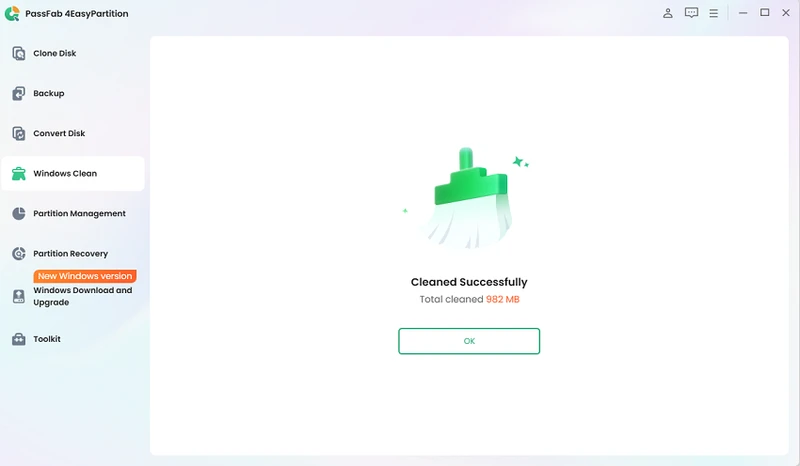
PassFab 4EasyPartition is a full-featured Windows disk utility that combines junk removal, partition management, disk cloning, and so on. Its Windows Clean module is specifically designed to scan and eliminate the types of files that built-in tools miss. Files safe for deletion are pre-selected, so you're not guessing.
- Download and install PassFab 4EasyPartition from the official website. Launch the application.
-
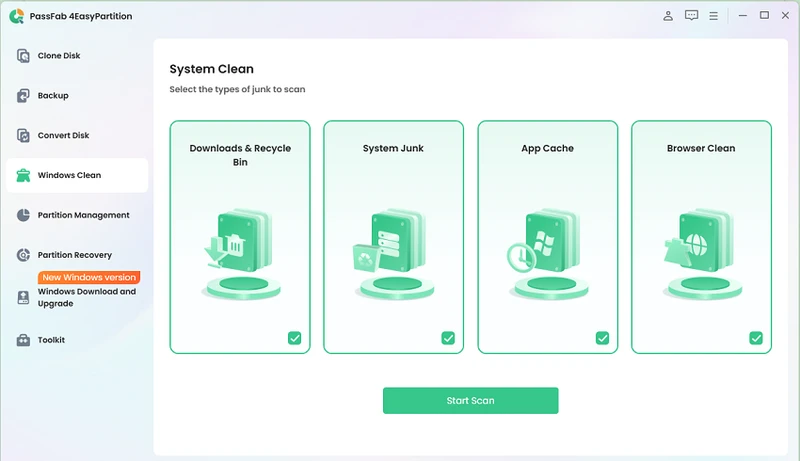
Select "Windows Clean" from the left navigation bar. Choose the
junk file categories you want to scan and click
Start Scan.

-
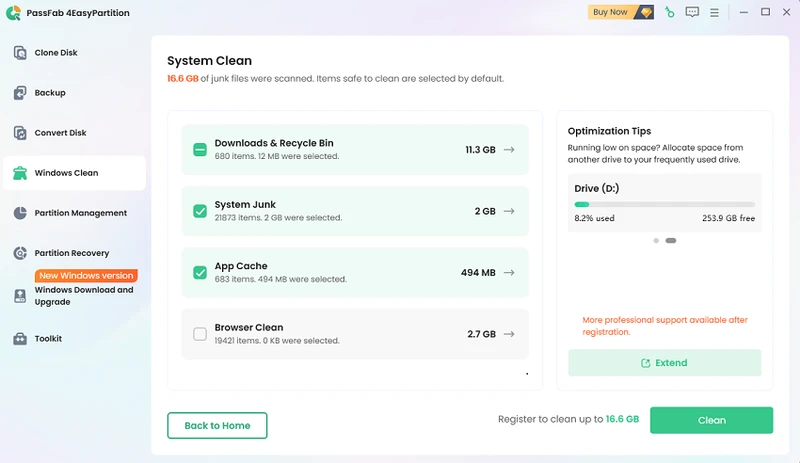
Review the scan results. The tool lists all detected junk files with
sizes. Items safe to delete are pre-selected by default, and you can
click the arrow next to each category to inspect details.
-
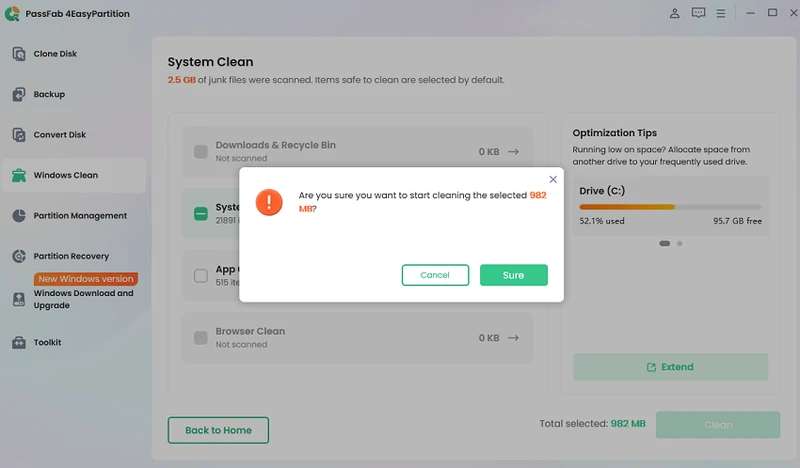
Click Clean and Sure to proceed. The tool will process the
deletion and please wait patiently.
- After that, unnecessary files will be removed and more disk space will be available on your computer.
Option 2: Remove Unnecessary Apps
Installed applications are often the single biggest consumer of disk space, especially games, video editing software, or apps you no longer use. Uninstalling them is one of the most effective ways to free up disk space quickly.
- Go to Settings > Apps > Installed apps. Sort by Size to see the largest apps first.
-
Click any app you no longer need and select Uninstall.
Tip:
Don't forget to check for apps installed by manufacturers (bloatware). These are often the easiest wins for reclaiming storage.
Option 3: Enable the OneDrive Files On-Demand Feature
If you use OneDrive, the Files On-Demand feature lets you see all your OneDrive files in File Explorer without actually downloading them to your hard drive. Files appear as placeholders — they're accessible when you need them (with an internet connection) but don't consume local disk space until opened.
- Click the OneDrive icon in the system tray. Click Help & Settings > Settings.
- Under the Sync and backup tab, click Advanced settings.
- Under Files On-Demand, click Free up disk space to convert already-downloaded files to online-only, or toggle the setting on for future syncs.
More FAQs about Windows Disk Cleanup
Is it safe to do a Disk Cleanup?
Yes. The Windows Disk Cleanup tool is designed to only target files that are safe to delete. It does not touch your documents, photos, installed programs, or system files required for Windows to function.
Should I delete everything on Disk Cleanup?
You can safely delete most categories presented by the disk cleanup tool, but a few are worth thinking about: Delivery Optimization Files can be safely removed if your PC has been running fine after recent updates. Previous Windows installations (if visible) can free up 10–20GB, but only delete this if you're confident you won't want to roll back.
What are the disadvantages of Disk Cleanup?
It doesn't clean browser caches from modern browsers (Chrome, Firefox, Edge); it doesn't touch third-party app temp files; it has a dated interface with no file-size sorting; and it can be slow on large drives.
How long should Disk Cleanup take?
A standard disk cleanup typically takes between 1 and 5 minutes on a modern SSD. On older HDDs or machines with very large temp file accumulations, it can take 10–15 minutes.
Conclusion
Learning how to do disk cleanup on Windows is a straightforward way to reclaim storage and prevent your system from slowing down under the weight of accumulated junk files. For a more complete cleanup disk space on Windows 11/10 experience, PassFab 4EasyPartition is the standout choice. It goes well beyond what the standard disk cleanup tool offers. If your goal is to genuinely free up space without the guesswork, it's the most efficient option available.

Senior Tech Writer & iOS Security Specialist
Andy Samuel has spent the last 6 years testing iOS unlock methods, FRP bypass tools, and Windows system utilities across real devices. He's reviewed dozens of paid and free tools, and his guides lean on step-by-step screenshots taken on the actual firmware version he covers. Outside of writing, he keeps a small home lab of test phones and laptops so every fix gets verified before it ships.